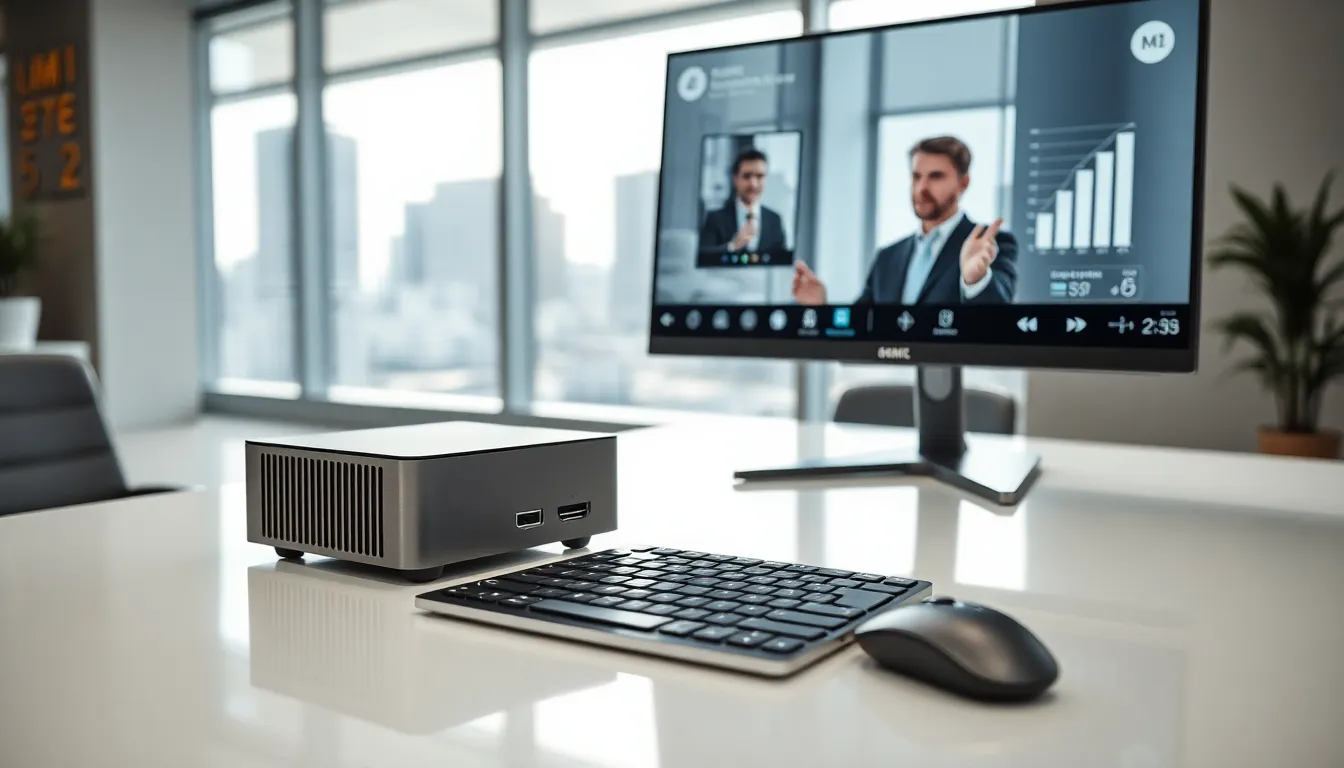
Mini desktop computers have quietly transformed the way people think about computing power and space. These small but mighty machines now deliver impressive performance in a fraction of the footprint of traditional desktops, making them a top choice for professionals, gamers, businesses, and creative users who demand efficiency without clutter. Brands like GEEKOM are leading the charge in the United States, offering mini PCs that are just as suitable for workstations as for home entertainment setups.
But with their compact design come questions: What exactly is a mini desktop computer, how do they differ from the usual towers, and what trade-offs are involved? This complete guide breaks down everything you need to know, from technical architecture to real-world use cases and the latest trends.
Form Factor and Design
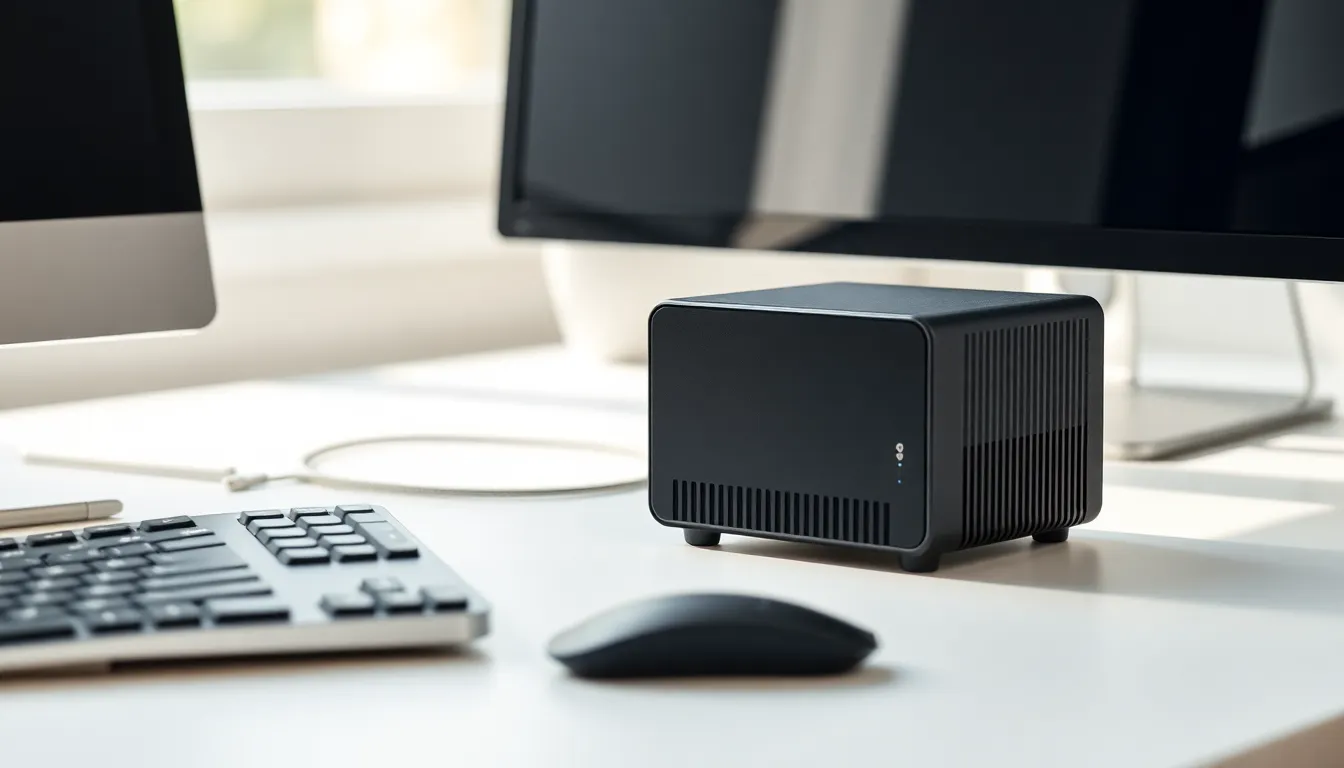
Mini desktop computers, often called mini PCs, prioritize compactness. They eschew bulky towers for svelte enclosures that take up minimal desk space while still housing a full suite of essential hardware. Design decisions focus on maintaining performance within tight thermal and spatial limitations.
Size and Dimensions
A typical mini desktop computer ranges from the size of a paperback book to a small shoebox. Many popular models, such as the GEEKOM Mini IT series, fit comfortably into hand or can be tucked behind a monitor, freeing valuable workspace in offices, retail kiosks, or entertainment centers.
5-3 Liters
Most mini desktop computers occupy between 0.5 to 3 liters of internal volume, far smaller than a standard desktop.
Comparison with Micro-ATX and Tower PCs
A Micro-ATX case usually measures 20–24 liters, while full-sized towers are even larger. Mini PCs deliver similar core functionality in just a tenth (or less) of that volume, making them much easier to locate in cramped workspaces or minimalist environments.
Case Styles
The mini desktop market covers a wide variety of external case designs to suit diverse needs.
Cube, Stick, and Bar Designs
Cube-style cases (like the GEEKOM MiniAir series) maximize cooling in minimal space. Stick PCs, resembling oversized USB drives, can plug directly into a display. Bar-shaped designs balance footprint and airflow, often used in high-performance models.
Fan-Cooled versus Passive-Cooled Designs
Fan-cooled units deploy compact, efficient fans for active heat removal, essential for powerful CPUs and heavier multi-tasking. Passive-cooled mini PCs, meanwhile, rely on heat sinks and case design for silent, dust-free operation, making them ideal for noise-sensitive spaces like home theaters.
Port Selection and Accessibility
Even though their size, mini desktop computers offer a surprisingly versatile set of connectivity options.
USB Type-A and Type-C, HDMI, DisplayPort, Ethernet, Audio Jacks
The best mini PCs pack in multiple legacy USB-A ports, at least one USB-C (or Thunderbolt), HDMI and/or DisplayPort for multi-monitor setups, wired Gigabit Ethernet, and standard audio jacks.
Internal Expansion M.2 Slots and RAM SO-DIMM Slots
Inside, expansion can include M.2 slots for solid-state drives and SO-DIMM slots for laptop-style RAM, enabling users to upgrade as needed without sacrificing the system’s sleek profile.
Core Components
A mini desktop computer delivers the essentials of any PC, CPU, RAM, storage, and connectivity.
Processors
Mobile-Class vs Desktop-Class CPUs
Most mini PCs use mobile-class intel or AMD processors, prized for their efficiency. Some high-end models (like GEEKOM‘s top-tier variants) deploy desktop-class CPUs, trading a little extra power draw for a boost in processing speed.
Intel N-Series and AMD Ryzen Embedded
Popular choices include Intel’s N-Series chips for entry-level tasks, and AMD’s Ryzen Embedded for mid-range or industrial applications.
Passively Cooled SoCs vs Actively Cooled High-Performance Chips
Entry-level mini PCs favor passively-cooled System-on-Chip processors, ensuring silent operation: high-performance models use fans to cool more powerful chips, sustaining demanding workloads.
Memory and Storage
SO-DIMM RAM Capacities up to 64 GB
Mini desktop computers most commonly use SO-DIMM RAM, just like laptops, with modern models supporting up to 64 GB, sufficient for office work, moderate creative projects, and even virtualization.
SSD Options M.2 NVMe vs SATA Drives
As for storage, nearly all modern mini PCs rely on solid-state drives (SSD). High-speed M.2 NVMe SSDs deliver quick boot and load times, while affordable SATA options still appeal for basic storage expansion needs.
Graphics Capabilities
Integrated GPUs Intel UHD and AMD Radeon Vega
The majority of mini desktop computers handle graphics through built-in GPUs on the CPU, Intel’s UHD Graphics or AMD Radeon Vega. This is more than enough for office applications, media streaming, and basic creative work.
External GPU Compatibility via Thunderbolt
Certain advanced mini PCs include Thunderbolt or USB4, opening the door to external GPUs (eGPUs) for light gaming or content creation demanding more graphical horsepower.
Connectivity
Modern mini PCs cover Wi-Fi (often Wi-Fi 6 or even Wi-Fi 6E), Bluetooth, and wired Ethernet. This ensures fast connections for remote work, file sharing, or media streaming, essential criteria for both businesses and home users.
x, and Gigabit Ethernet
Most mini desktop computers include Gigabit Ethernet for stable wired connectivity, vital for offices or creative pros moving large files. Some mini PCs, especially larger Mini-ITX designs, go a step further.
Expansion via PCIe Add-In Cards in Larger Mini-ITX Variants
Certain mini PCs built around the Mini-ITX standard allow PCIe cards, such as additional network adapters, discrete GPUs, or storage controllers, a rarity in ultra-compact designs, but extremely helpful for advanced applications.
Performance and Use Cases
The true appeal of mini desktop computers lies in their surprising versatility. Today’s best models are perfectly viable for everything from productivity to content creation and lightweight gaming.
Office and Productivity
Word Processing and Spreadsheets
A mid-range mini PC runs office applications, browser-based tools, and spreadsheets almost as swiftly as a large desktop.
Video Conferencing
With integrated microphones, camera support, and reliable network connections, they’re ideal for modern hybrid work setups.
Home Theater and Media Streaming
A mini PC can easily serve as a quiet, unobtrusive home theater system.
4K Video Playback
Integrated graphics now support smooth 4K playback, making local and streaming media crisp and fluid.
HDMI ARC and Audio Passthrough
Some models feature HDMI ARC or advanced audio passthrough, syncing perfectly with soundbars and home theater audio systems.
Light Gaming and Casual Content Creation
Entry-Level Gaming
Thanks to improved integrated graphics, casual gaming, including titles like Minecraft, Rocket League, or eSports staples, is well within reach. GEEKOM‘s higher-end models, in particular, deliver playable frame rates at standard settings.
Photo Editing and Basic Video Editing
For creatives, mini PCs handle photo editing and light video work in applications like Adobe Photoshop and Premiere Elements, especially when configured with extra RAM.
Embedded and Industrial Applications
The compact, reliable nature of mini desktops lends itself to industrial environments.
Digital Signage and Kiosks
You’ll often find mini PCs powering retail displays, kiosks, or museum guidance systems, all running on minimal hardware, but with reliable uptime.
Edge Computing and IoT Gateways
For industrial controllers, gateways, or edge computing where space is tight but reliability is vital, fanless mini PCs excel.
Advantages and Limitations
Advantages
Space Efficiency and Portability
It’s tough to beat a mini desktop computer for footprint: most users can fit one in the palm of a hand. They’re also light enough to move between home, office, or conference room without a hitch.
Low Power Consumption and Quiet Operation
Lower power usage compared to traditional desktops not only saves on electricity, it also means less heat and less noise, making these ideal for night owls, shared offices, or home entertainment.
Limitations
Restricted Thermal Headroom
Small enclosures mean less room for cooling, which limits sustained high-performance workloads.
Limited Upgrade Paths
While RAM and storage upgrades are usually easy, adding a discrete GPU or expanding with extra cards is typically off the table, except in Mini-ITX machines.
Potential Throttling Under Sustained Load
Under heavy, prolonged loads, a mini PC may throttle performance to stay cool, something to keep in mind if you need it for demanding, 24/7 operations.
Key Brands and Models
There’s a wide market for mini desktop computers, some established, others boutique.
Intel NUC Series
Long the mini PC reference, Intel’s NUC (Next Unit of Computing) set the gold standard in compact design.
Apple Mac Mini
A favorite among creative pros, the Mac Mini leverages Apple Silicon (M1, M2) for power in a minimalist chassis.
ASUS PN and ProArt Series
ASUS’s PN/ProArt mini PCs focus on creative and enterprise users needing reliability and expandability.
Gigabyte BRIX
A strong performer in the budget and mid-range sector.
Minisforum, Beelink, and Other Boutique OEMs
Smaller brands like Minisforum and Beelink, and now GEEKOM, bring competitive specs and innovation, often targeting power users and compact workstation fans.
Buying Guide
Selecting a mini desktop computer means balancing performance, features, and price.
Determining Performance Needs
CPU Benchmarks and GPU Requirements
Check real-world CPU benchmarks for your common tasks, and consider GPU requirements based on whether you prioritize gaming, content creation, or basic productivity.
Multitasking vs Single-Thread Performance
Heavy multitasking (multiple apps or browser tabs) demands more threads and RAM, while single-core performance rules for spreadsheets and web browsing.
Storage and Memory Planning
SSD Capacity and Upgradeability
Opt for at least a 256GB SSD for quick boot times and snappy file access. Most mini PCs, including GEEKOM, allow storage upgrades.
Dual-Channel Memory Considerations
If you plan to use integrated graphics, populate both SO-DIMM slots for dual-channel memory, it can noticeably boost performance, especially for graphics-heavy work.
Connectivity and Ports
Future-Proofing with Thunderbolt and USB4
A mini desktop with Thunderbolt or USB4 will be more adaptable, supporting eGPUs, fast external drives, or docking hubs as needs change.
Multiple Display Outputs
If you need a multi-monitor setup, look for two or more HDMI or DisplayPort outputs, a feature appearing on advanced models from GEEKOM and other leading brands.
Power and Noise
Fanless Designs vs Active Cooling
Decide if silent operation or maximum performance matters most. Fanless mini desktops are ultra-quiet, but active-cooled models sustain higher speeds under load.
Typical TDP Ranges
Most mini desktop computers fall between 15W and 65W TDP. Lower numbers mean less heat and noise but also cap top-end performance.
Setup and Maintenance
Installation of OS, Drivers, and Firmware Updates
Initial setup is straightforward: install your operating system, update drivers, and check for firmware updates through the vendor’s site.
Internal Cleaning and Thermal Paste Reapplication
Like any computer, periodic cleaning (especially fan vents) and reapplying thermal paste every couple of years keeps temps and noise in check.
Upgrading RAM and Storage Modules
Most mini PCs offer tool-less access for swapping in extra memory or a larger SSD, an advantage for future-proofing.
Future Trends
Advances in ARM-Based Mini PCs
Apple Silicon
Apple’s shift to custom ARM chips (M1, M2) has set new highs for power efficiency and performance per watt in the mini PC form.
Qualcomm Snapdragon
Snapdragon-based Windows mini PCs are gaining traction, promising long battery life and instant-on experiences.
AI-Accelerated Inference and On-Device ML
Mini desktop computers are starting to integrate NPUs (neural processing units) or dedicated ML accelerators, supporting local AI tasks for everything from smart assistants to creative tools, without the cloud latency.
Frequently Asked Questions About Mini Desktop Computers
What is a mini desktop computer?
A mini desktop computer is a compact personal computer designed to deliver full desktop functionality in a much smaller size than traditional towers. It typically fits in the palm of your hand and is ideal for saving space without sacrificing performance.
How does a mini desktop computer differ from a regular desktop?
Mini desktop computers prioritize space efficiency and portability. Unlike regular desktops, they use smaller components and enclosures, often offering similar core features but with limited expansion and sometimes less powerful components due to thermal constraints.
What are the main advantages of mini desktop computers?
The key advantages of mini desktop computers include space-saving design, low power consumption, quieter operation, and portability. They fit easily onto crowded desks or behind monitors, making them perfect for home offices, media centers, and businesses.
Can you upgrade a mini desktop computer?
Yes, many mini desktop computers allow users to upgrade RAM and storage via accessible internal slots. However, adding dedicated graphics cards or extra internal components is usually limited or unavailable due to space and design restrictions.
Is a mini desktop computer suitable for gaming or creative work?
Modern mini desktop computers, especially higher-end models, are capable of light gaming and basic creative tasks like photo or video editing. They often use integrated graphics, and some support external GPUs for enhanced graphical performance.
What should I consider when choosing a mini desktop computer?
Consider your performance needs, available ports, upgradability, and intended use. Evaluate CPU and GPU capabilities, RAM and storage support, and whether quiet operation or multi-monitor output matters most for your workflow or entertainment setup.